Help

How Gridman is put together and what connects to what — with real screens as examples.

Getting started

How Gridman is put together

Five entities and the links between them: everything else in the app hangs off that chain.

Gridman rests on a single chain: project → sequence → shot → version → comment. A project is a film, a commercial or a series. A sequence is a scene inside it. A shot is a single plate somebody owns and that has a due date. A version is the actual file brought in for review. A comment is a note pinned to a frame of that version.

  1. Project
    A film, a spot, a series. Code, dates, team
  2. Sequence
    A scene inside the project. Optional
  3. Shot
    A plate: due date, artists, status, brief
  4. Version
    An uploaded file: stage and number
  5. Comment
    A note on one frame of the version
A shot carries
  • Status
  • Due date
  • Artists
  • Brief
A version carries
  • Stage
  • Verdict
  • Proxy and thumbnail
  • Drawings on frames
Who sees what
  • Ownereverything in their own account
  • Internal mini-accountprojects they are allowed into, permissions set one by one
  • Client mini-accountonly the versions assigned to them in a review session
  • Guest with a linkone shot, no account, for as long as the link lives
Everything else in the app hangs off this chain.

Sequences are optional: a small project lives without them and keeps its shots directly in the project. Everything else — statuses, stages, artists, links, watermarks — are not separate modules but properties of those five entities. Which is why it reads best top-down: first Projects and sequences, then Shots, then Versions and stages.

In the code and the API the central entity is called Shotman; in the interface it is only ever a shot. Same thing.
Naming convention

A version name assembles itself from the project code, the numbers and the stage — nothing to type by hand.

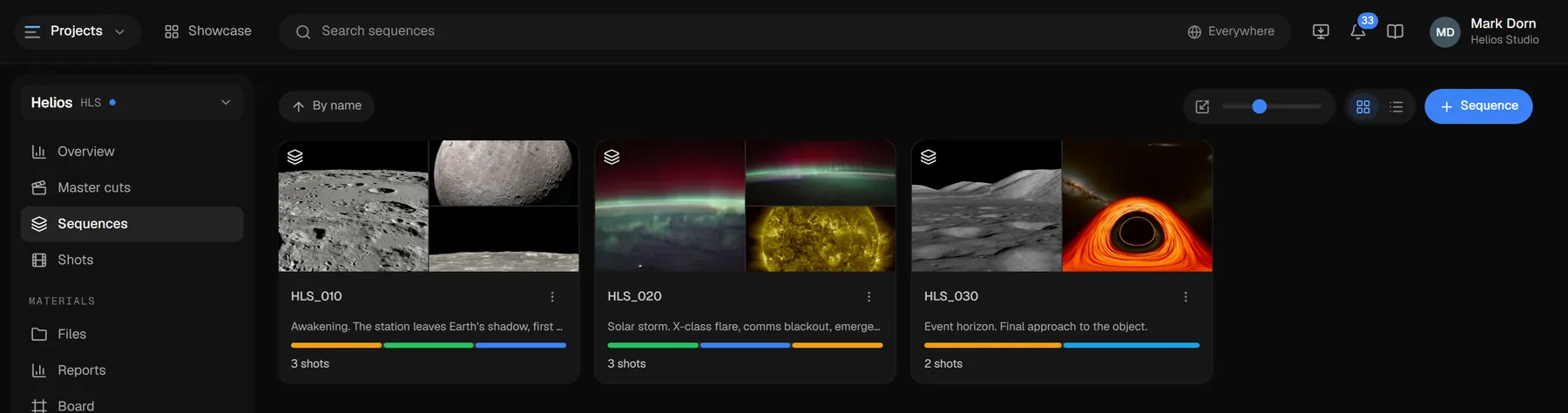
Every project has a short code — 2 to 8 latin letters or digits, say HLS. Everything else is built from it:

  • HLS_010 — a sequence;
  • HLS_010_020 — a shot inside it;
  • HLS_010_020_comp_v003 — the third comp version of that shot.

Numbers step by 10, so there is always room to slip 015 between 010 and 020 without renaming half the project. The app fills in the next free number for you, and you can override it.

Version numbers count per stage: comp has its own run, anim has another. The first comp version of a shot is comp_v001 even if three animation versions came before it.

If your studio has run on its own scheme for years, keep the file name: the upload dialog has a “use the file name” switch, and Gridman then leaves the name alone.

Projects and sequences

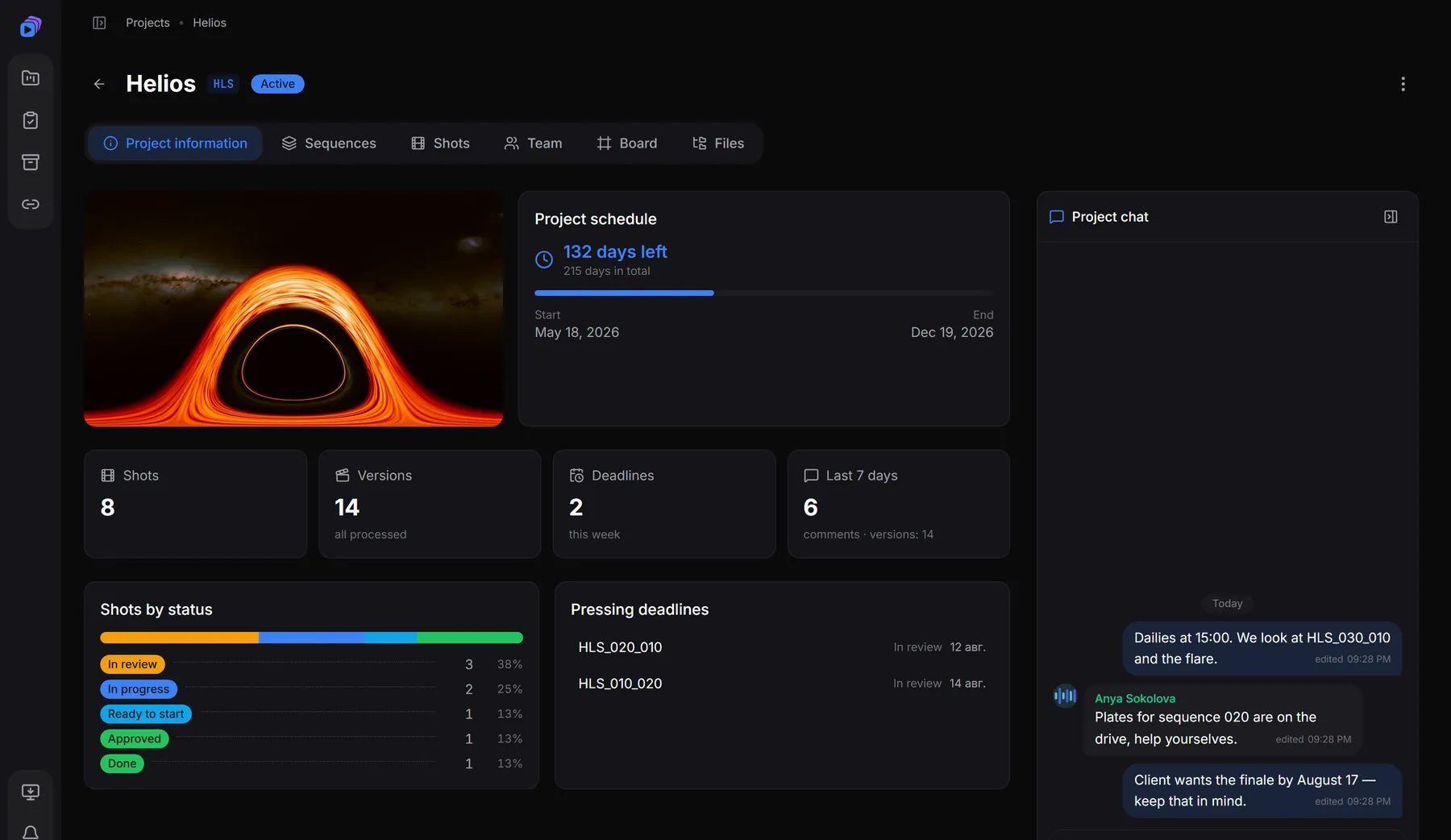
The project is the top level: dates, team, chat and all the statistics gather here.

A project starts with a name, a code and its dates. From then on it lives across six tabs: Project information, Sequences, Shots, Team, Board, Files.

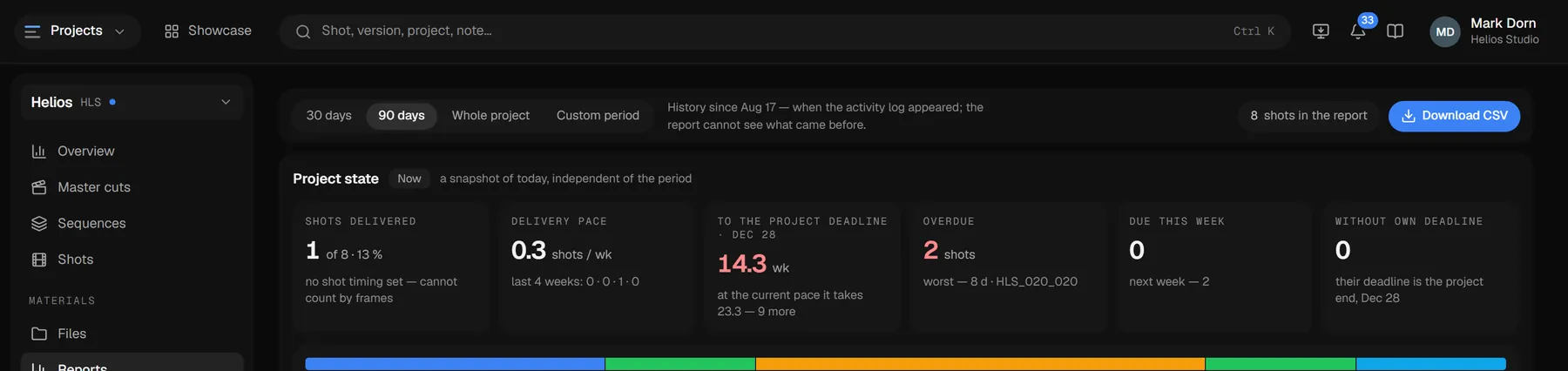
Project information tab: schedule, shot and version counters, status breakdown, urgent deadlines and the team chat
The Information tab is the project summary: time left until delivery, shots by status and the nearest deadlines.

Sequences are scenes. They earn their keep once you pass a couple of dozen shots: lists filter by them and Gridman Tools lays out folders from them. A shot can move to another sequence at any point.

A finished project goes to the Archive — it leaves the list but stays reachable and is not deleted. The project-wide chat is switched on and off in the project settings.

Shots

A shot is the unit of work: due date, artists, status and a brief. Versions stack up inside it.

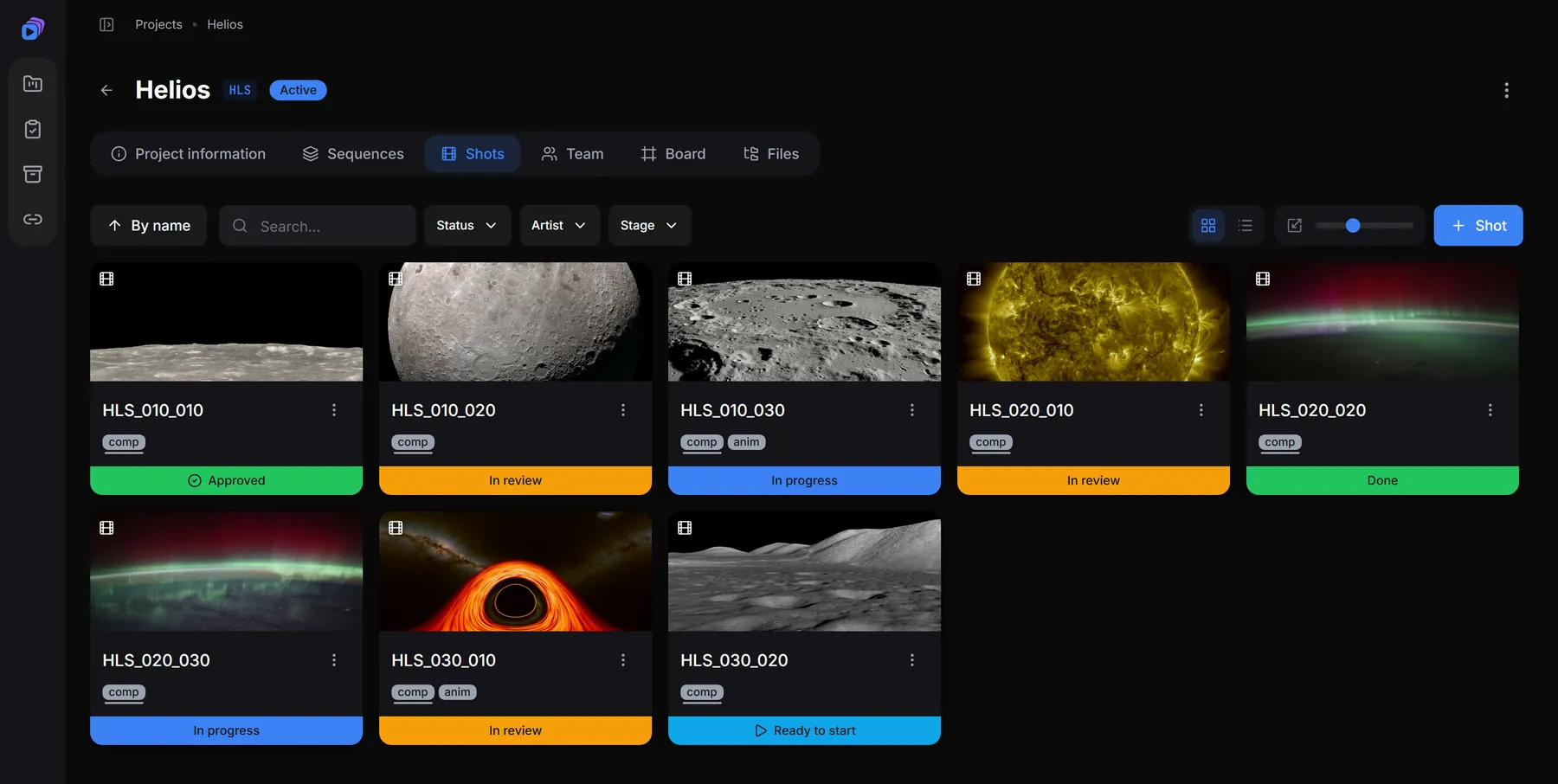
A shot carries a due date, one or more artists, a status and a brief. All of it shows on the card in the list, together with a preview of the latest version.

Shots tab: cards with the latest-version preview, stage codes and colour-coded status bars
The shot list. Filters on top go by status, artist and stage; the control on the right changes card size and switches to a list view.

The brief lives on the Spec tab next to the comments: that is where you write down what has to be done and attach references. The artist reads it in the same place they watch the version — no hunting through email.

If a plate is dropped, the shot is omitted: it stays in the project with a mark, but no longer skews the statistics or waits for versions.

Versions and stages

Every upload is a new version. The stage (comp, anim, your own) keeps one line of work apart from another.

A version is an uploaded video or still. The upload asks for a stage: comp, anim, cleanup, ref — the list belongs to your account, and both codes and titles are edited under “Management”.

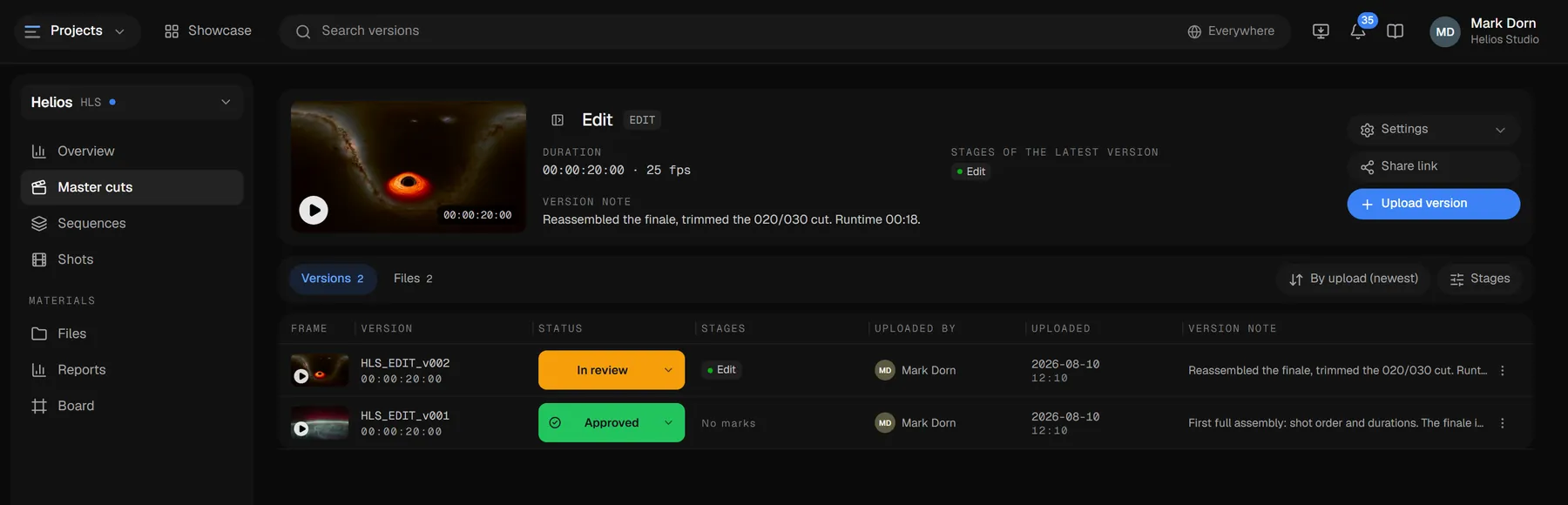
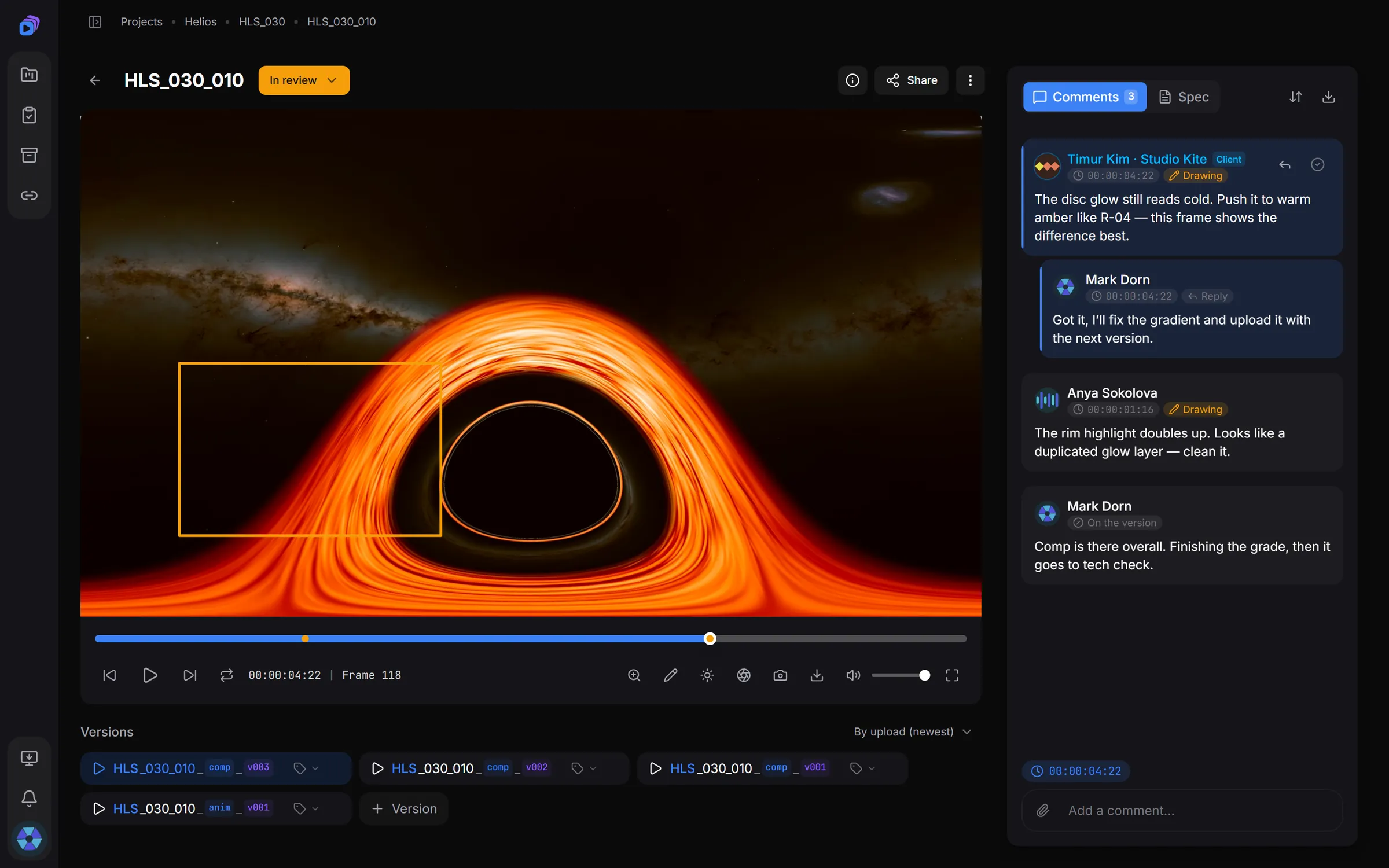
Version strip under the player: comp_v003, comp_v002, comp_v001 and anim_v001
The version strip under the player. A click switches versions; each has its own stage and its own number.

Once uploaded, the video is processed: a proxy is built for smooth playback and a thumbnail is grabbed. The version is marked while that runs and opens in the player as soon as it is ready. The original is kept if your plan allows it and the project asks for it.

Proxies are encoded in AV1; browsers that cannot play it get an H.264 one prepared on first open — automatically, nothing to switch on.

A version also carries a verdict — approved, changes requested or pending. A verdict can move the shot status on its own, see Statuses, verdicts and auto-statuses.

Review

The player and frame-accurate navigation

Exact frame stepping, timecode, zoom and a timeline with comment markers.

Review screen: a note drawn on the frame, the revision thread on the right and the version strip below
The review screen in full: player and version strip on the left, comments and brief on the right.

Under the frame sit the timecode and the frame number — the thing notes are actually argued about. Left and right arrows (or J / L) move exactly one frame, space pauses, F goes full screen.

  • + and zoom into the frame, 0 or a double click return to 100%;
  • markers on the timeline show where comments sit — click one to jump there;
  • the snapshot button copies the current frame with the drawings on top.

The full list of shortcuts is in the app: profile menu → “Keyboard shortcuts”. Keys are read by position, so your layout does not matter.

Comments and drawing on the frame

A note is pinned to a frame, not to an email: it sits where the problem is.

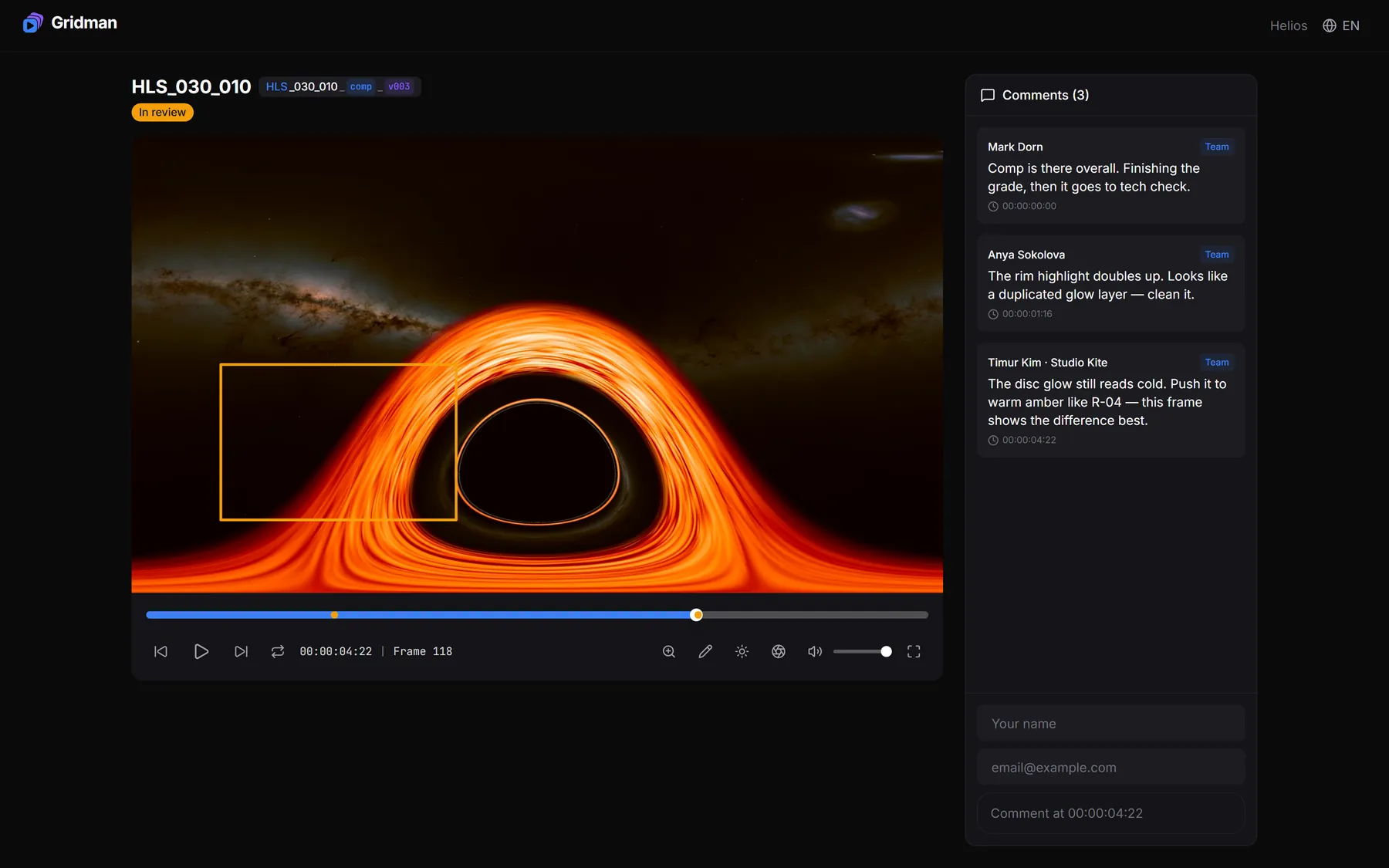
A comment belongs to one frame: it remembers the timecode and the frame number. You can draw over that frame — an arrow, a box, a line or freehand. The drawing shows on its own frame only, so it never covers the rest of the shot.

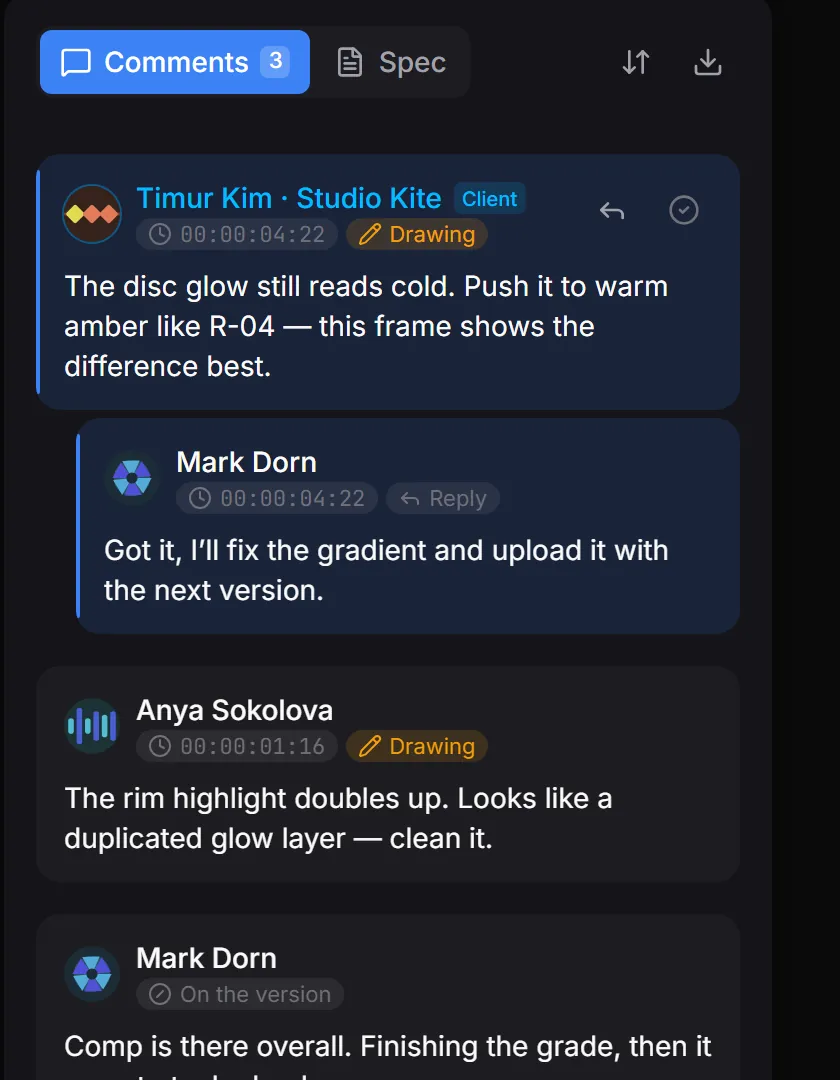
Comments panel: a message from the client tagged “Client”, a threaded reply and a general comment on the version
Client comments are highlighted and labelled — you will not mistake them for the internal discussion.
  • You can reply to a comment — that makes a thread instead of a second entry in the feed;
  • an @mention hands the note to a person: they get a notification, see Notifications;
  • resolved notes get a tick and drop to the bottom;
  • there is also a general comment — on the version as a whole rather than a frame.

Files can be attached to a comment — a reference, a screenshot, a crop from another package. When the notes pile up, take them out as a list or have them summarised: Exporting notes.

Statuses, verdicts and auto-statuses

Statuses are your own list. A verdict on a version can move the shot status by itself.

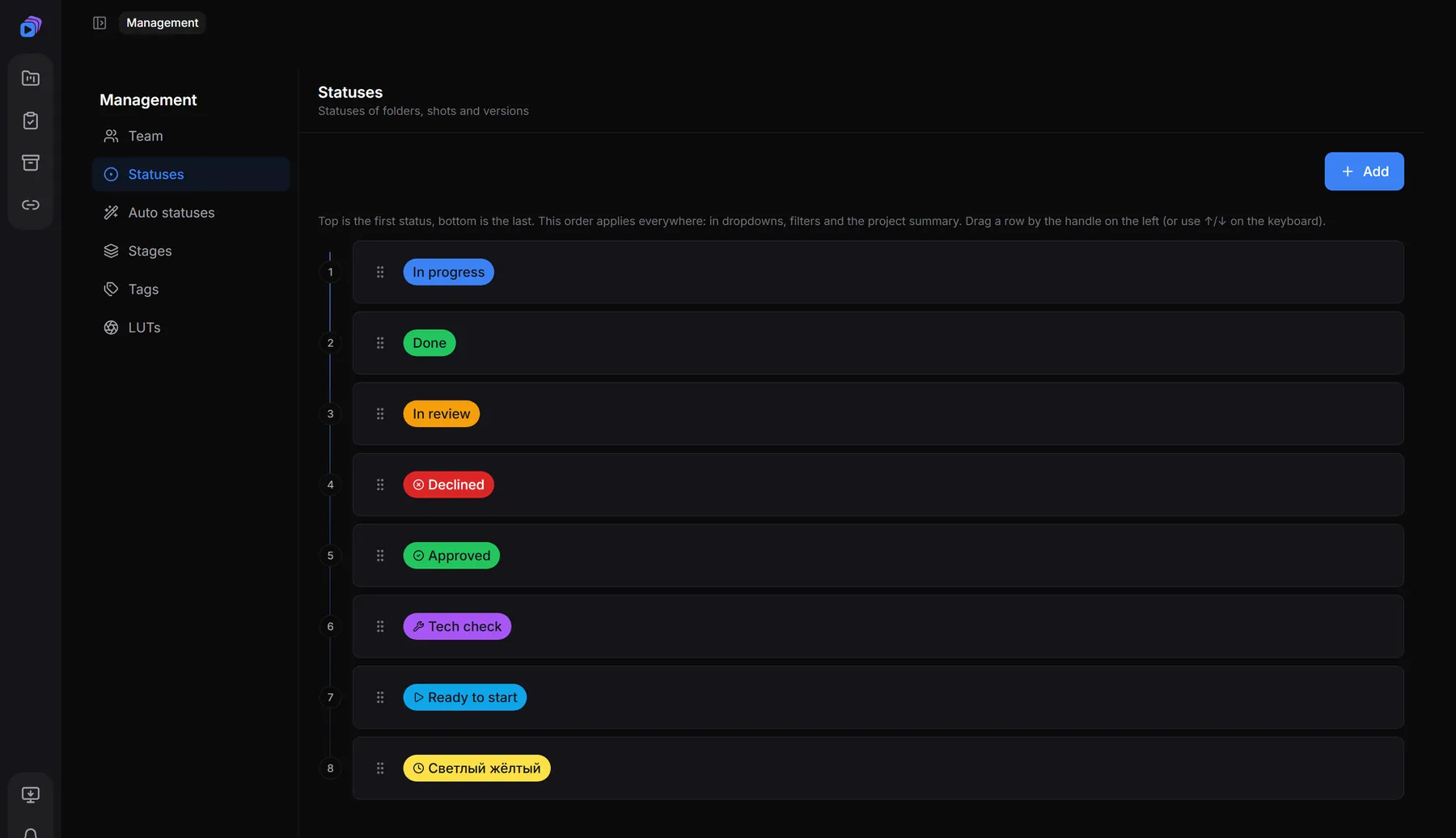
Shot statuses are set up for your studio: name, colour and icon. Each one can be given a stage meaning — “in progress”, “ready to start” or “done”. That meaning decides whether an artist’s stages count as closed, and whether they keep getting notifications.

Status list under “Management”: statuses with their colours and icons
The status list: “Management” → “Statuses”. Drag to reorder.

Separately from the shot status, every version carries a verdict: approved, changes requested or pending. Whoever watches sets it — the owner, a reviewer or a client on a review.

Auto-statuses tie the two together: “version approved — move the shot to Approved”, “client asked for changes — send it back to In progress”. Configured under “Management”, separately for the team and for clients.

The status given to every newly uploaded version is configurable too — so nobody has to set it by hand after each upload.

Comparing versions

Two versions side by side on shared playback — you see what changed between uploads.

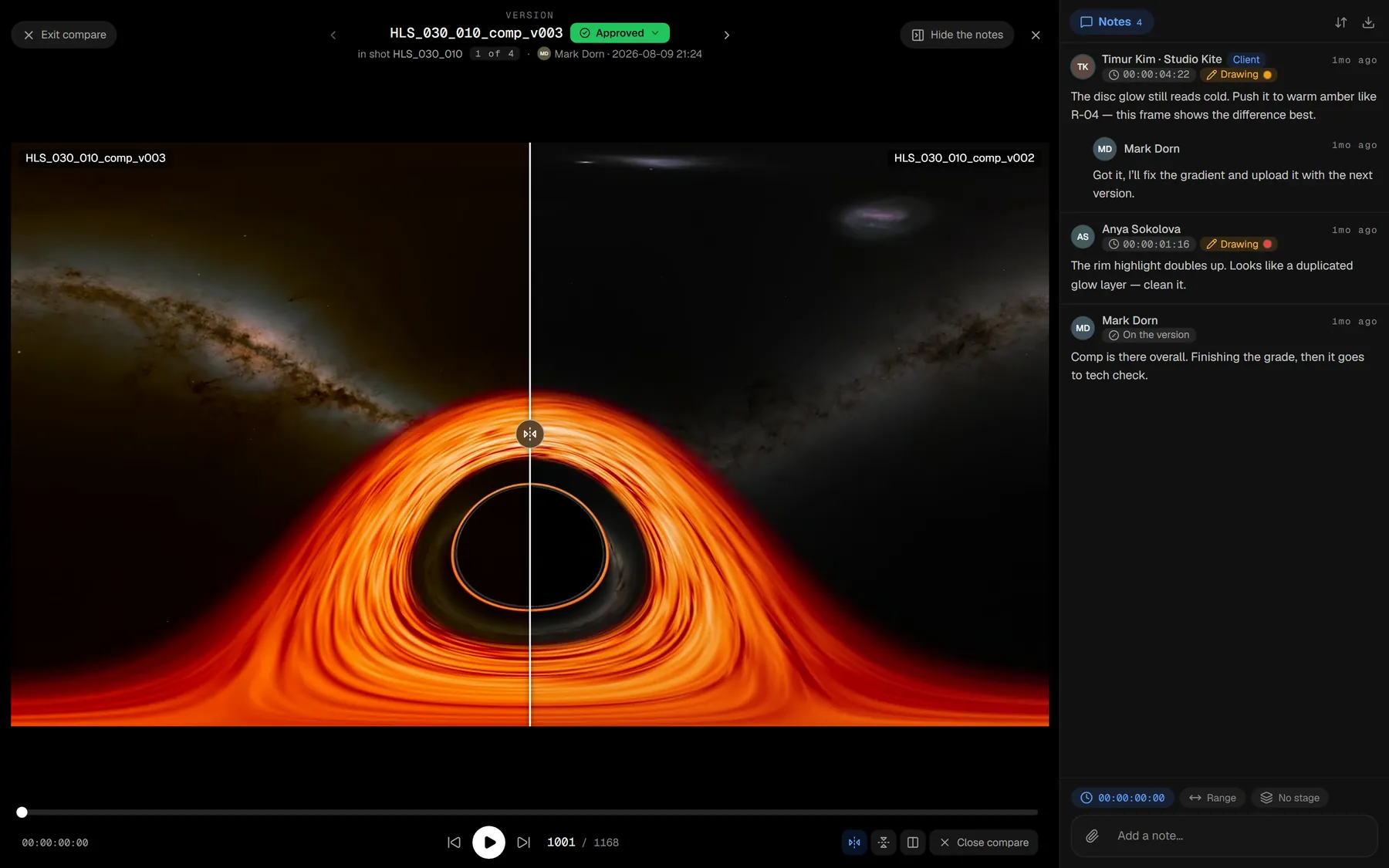
Comparison opens from a button on the shot page: one version on the left, another on the right, playback shared. Scrubbing moves both, so the frames never drift apart.

A comment written in comparison remembers which mode it came from: open it later and you land on the same pair of versions.

Watching together: sync playback and review sessions

Dailies in two shapes: a live session where everyone sees one frame, and a prepared list of versions with verdicts.

Sync playback is the live one. A host drives the player and everyone else sees the same frame in their own browser: scrubbing, pausing and switching versions are repeated for all.

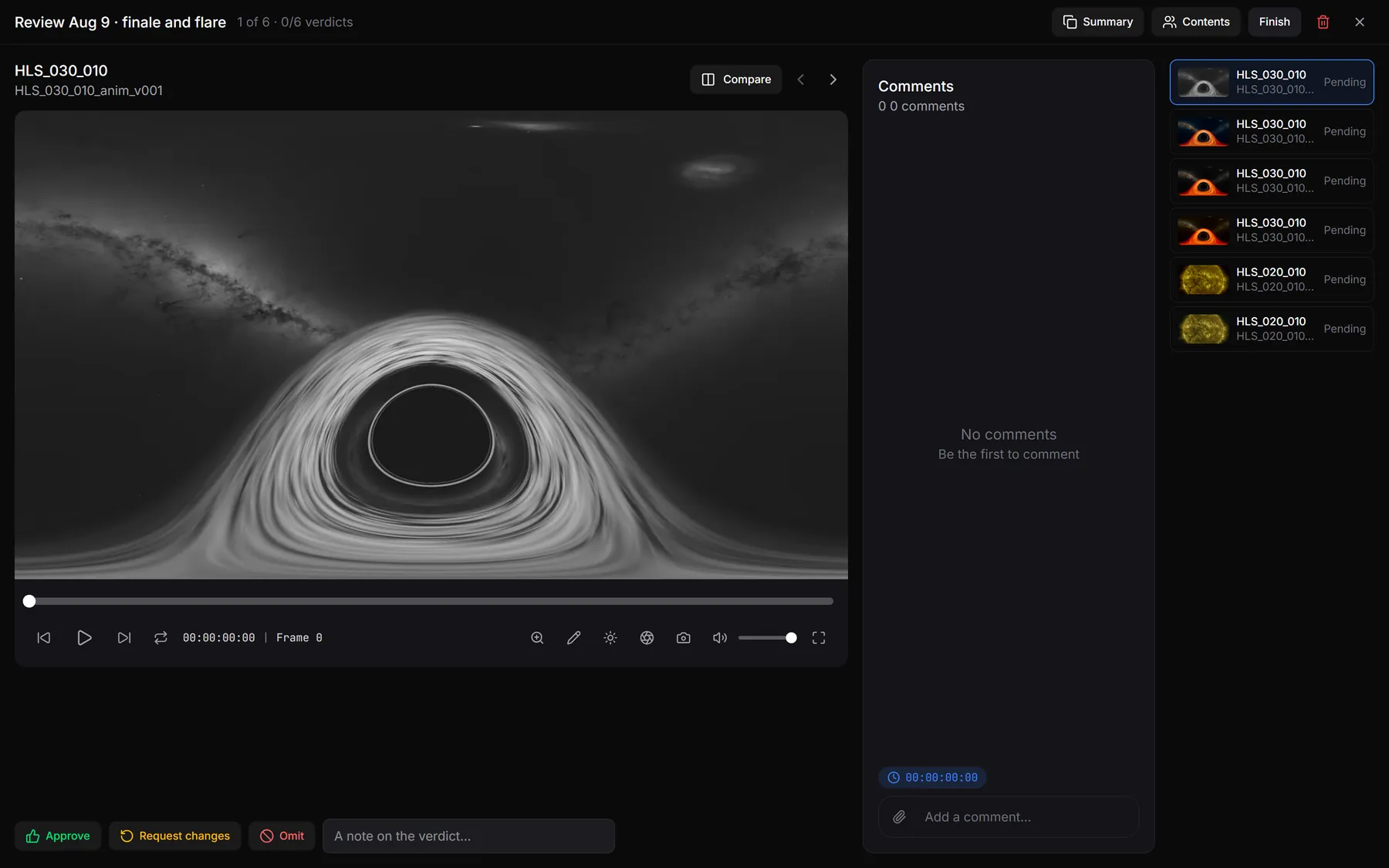
A review session is the opposite — not live. You put a list of versions together in advance, and the reviewer walks it one by one leaving a verdict: approve, request changes, or omit the shot. A summary builds up at the bottom and can be copied out in one piece.

Review session screen: the version in the player, verdict buttons and the list of versions under review
A review session: verdicts go on keys 1–3, progress through the list is on the left.

A session is either internal or client-facing. A client session is assigned to the client’s mini-account: they see only the versions you put in it and nothing else in the project. A separate switch decides whether they also see the team’s earlier comments.

Exporting notes

Notes travel to the edit as markers or to a spreadsheet — no retyping.

Notes on a version come out two ways: as a table (frame, timecode, author, text, resolved) that Excel or Google Sheets opens, and as EDL markers that DaVinci Resolve and Premiere understand — the comments land straight on the timeline.

The export takes the notes of the version you have open: each version keeps its own list, so old remarks never bleed into the new ones.

Colour and LUTs

Watch under the right gamma: camera presets and your own .cube files right in the player.

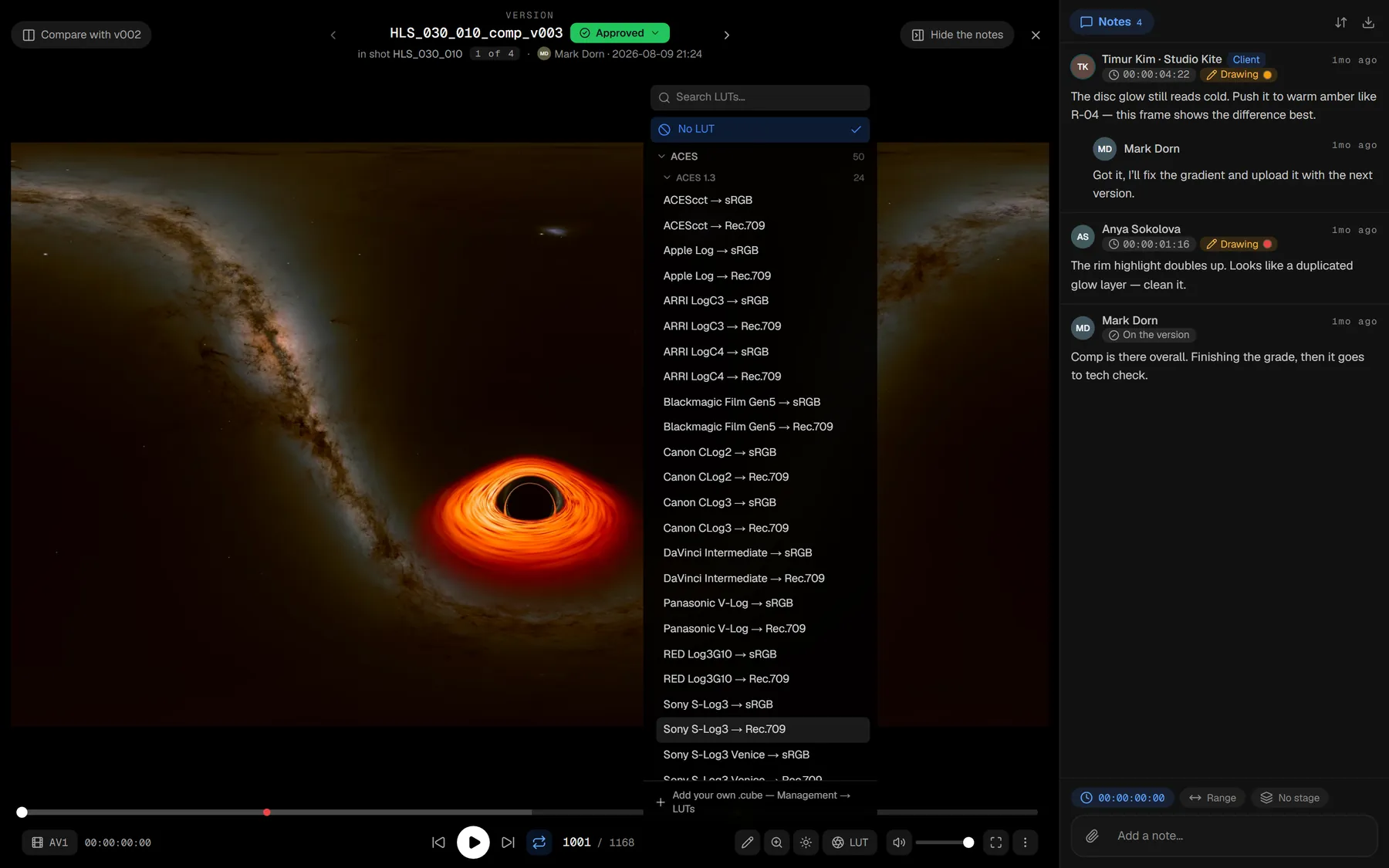
The player has a colour panel: exposure, gamma and LUTs. Presets for common camera gammas are generated on the spot and can be switched on by any account.

Your own .cube files upload on the Pro and Studio plans. Each LUT separately decides whether a guest on a Links for the client sees it — a client usually needs one working look, not your whole shelf.

A LUT only affects playback. The stored file does not change, and downloads are unaffected.

Team and access

Artists and project members

An artist is whoever a shot is assigned to. A member is whoever signs into the project under their own account.

Artists are a list of names you hang on shots. An artist can be just a name in the list or a live Mini-accounts and permissions — in which case the person sees their own shots and gets notified about them.

An artist can be given stages they own — say comp only. “My shots” and “my stages are done” are then counted against those, not against the whole project.

Mini-accounts and permissions

Separate logins for the team and for clients — no sign-up, with precise control over what they see.

A mini-account is a lightweight login inside your own account: a name like person@your-login and a password. The person needs no registration and no email address.

They come in two kinds:

  • Internal — for the team. Permissions are fine-grained: comment, give verdicts, create shots and versions, manage sequences, links, reviews, the board, the dictionaries.
  • Client — for the customer. Sees only the versions assigned to them in a review session and nothing else — see Watching together: sync playback and review sessions.

There are quick roles — viewer, reviewer, artist, manager, full access — and, separately, which projects the account is allowed into at all. An account can be disabled or given an expiry date, after which the login stops working.

Downloading is set apart from viewing: watermarked file, clean file, or clean file plus the original. It does not change what the person sees in the player — see Watermarks and downloads.

Watermarks and downloads

A mark drawn over the picture while watching and a mark burned into the file on download are two different things.

While watching, the mark is drawn over the video in the browser and carries the viewer’s identity and the time. The file itself is served untouched and nothing is re-encoded. Three independent switches turn it on: a master one on the owner, one per mini-account, and one per link.

On download the mark is a different beast: it is burned into the pixels, and such a file is prepared on request. Anyone entitled to a clean file — the owner and accounts with the matching permission — gets it without the wait.

Next door lives the access log: who opened a shot, when, and whether they grabbed frames. It answers “where did it leak from” when material travels further than planned.

Notifications

The bell, a sound and the browser’s system notifications — with a say in what is worth telling you about.

Events land in the bell inside the app and, when the tab is closed, as a system notification from the browser — if you allowed them on that device.

  • Status changes on shots and versions, verdicts and auto-statuses included;
  • replies to your comments and @mentions — those always arrive;
  • a choice between “all shots” and “mine only”, meaning the ones you are assigned to.

There is a separate switch for “stop notifying once all my stages are done”: the shot goes quiet until somebody reopens it.

Files, storage and the workstation

Uploading versions

Large files go straight to storage and survive a dropped connection.

A version is uploaded from the shot page — by button or by dropping the file. Everything that could refuse it (permissions, the per-file limit, free space) is checked before the first byte leaves, not after the gigabytes have landed.

Files from 16 MB up use a resumable upload that goes straight into storage, past our server. If the connection drops, the parts wait for it to come back and finish themselves — as long as the page is open there is nothing to do. An unfinished upload can be picked up within 24 hours.

Common video formats and stills are accepted. An uploaded image becomes a version too — with comments and a verdict, just without a timeline.

Storage and plans

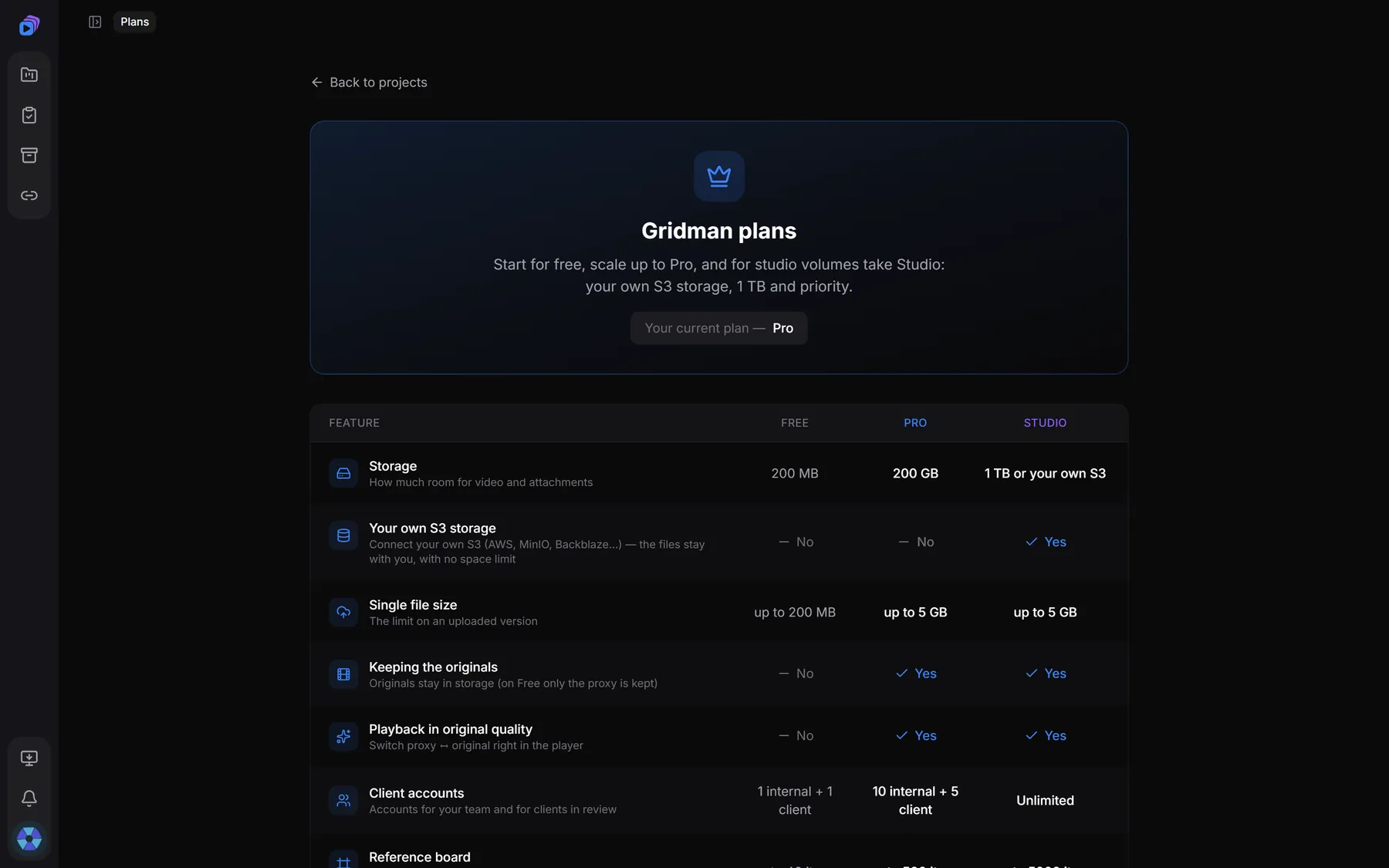
Space is counted on processed files. The plan sets the volume, the file size and the number of mini-accounts.

  • Free — 200 MB, up to 200 MB per file, originals are not kept.
  • Pro — 200 GB, up to 5 GB per file, originals kept and viewable in original quality, more mini-accounts.
  • Studio — 1 TB, or your own S3: the files live with you and our limit does not apply.
Plans page: Free, Pro and Studio compared feature by feature
Plan comparison inside the app.

Space in use is shown in the profile menu. When a paid plan runs out the files do not vanish on the spot: there is a grace period, and the warnings come well in advance.

Project files and the reference board

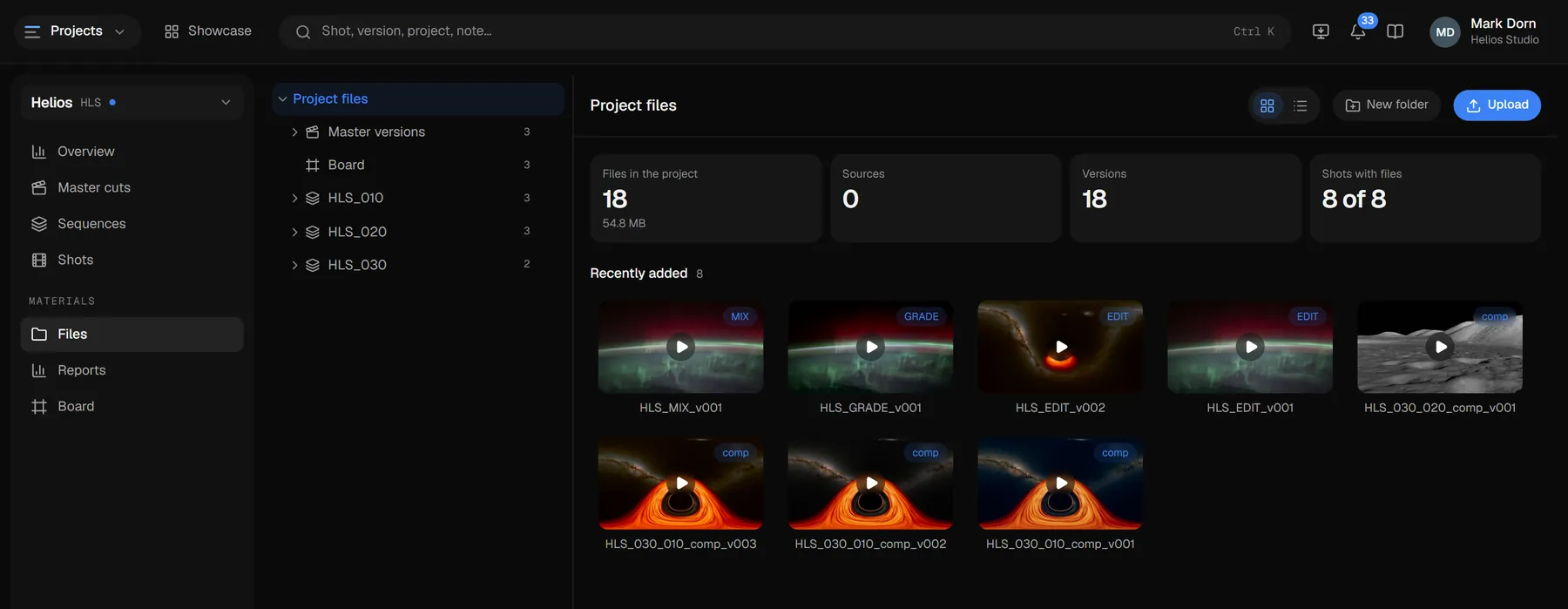
Working files next to the shots, and a shared mood board per project.

The Files tab gathers the project material: sources, working files, attachments. A cloud drive can be attached to the project — then the heavy material lives there and Gridman keeps the links.

The Board is the project’s shared mood board: images, links and captions on an endless canvas, with every edit visible to the others at once. A board can be shared by public link. Board images count towards the same storage quota, and their number depends on the plan.

Gridman Tools

A desktop app for the workstation: sequence names, project structure, checks and delivery packaging.

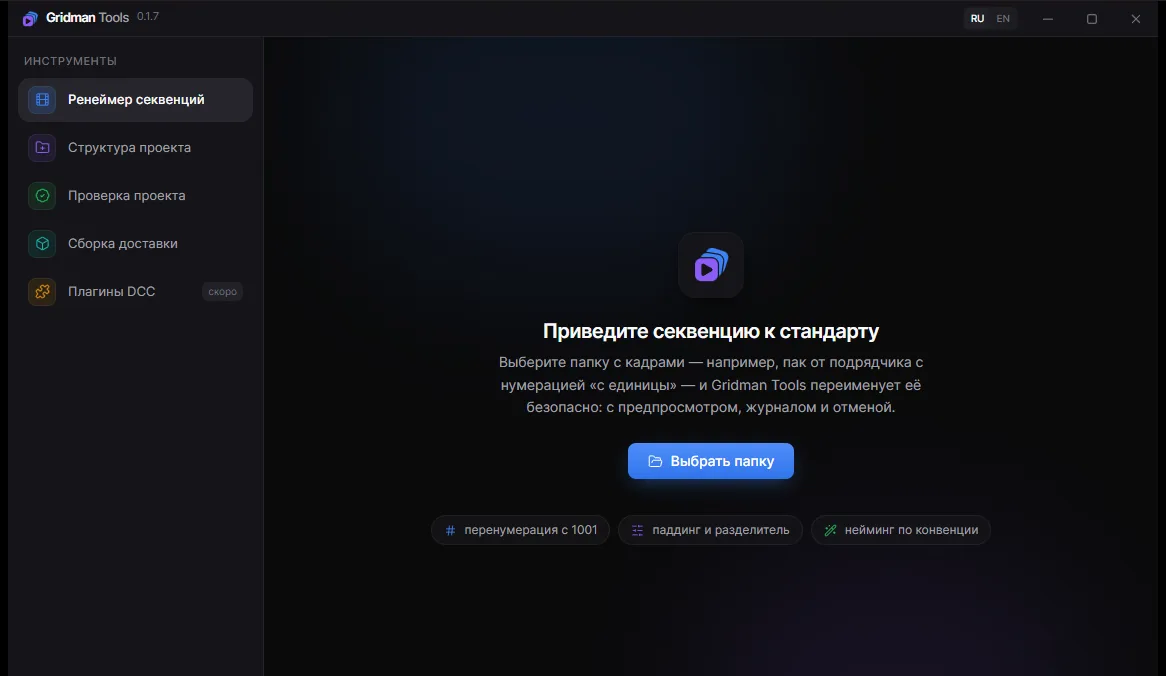
Tools is a separate Windows program that works with folders on disk; the basic tools need no account at all.

  • Sequence renamer — brings a frame pack in line with the convention: numbering, padding, separator. With a preview, a journal and an undo.
  • Project structure — lays out folders from the studio template, including from the real shots in Gridman.
  • Project check — gaps in numbering, zero-length and half-downloaded frames, version mismatches, shot codes from another project.
  • Delivery packaging — the latest versions from the exports folders across all shots, copied to the delivery folder together with a manifest.csv.
Gridman Tools window: the sequence renamer
The Gridman Tools window.

Signing into Tools with your account is worth it for the link to your projects: folder structures then come from real shots instead of invented names. Signing in issues the program a key, see API keys.

API keys

A key gives a program access to the account on your behalf — this is how Gridman Tools signs in.

A key acts exactly as whoever issued it: for a mini-account, with that account’s permissions, re-read on every request. Disable the account and the key dies with it immediately.

The full key is shown once, at creation. A lost key cannot be recovered — only revoked and reissued.

Mini-account keys are created by their sign-in to Gridman Tools and are visible to the owner in the same section: only the owner can revoke any of them.